Thursday, October 8, 2009

Ubuntu installation

Yesterday I installed the Ubuntu 9.10 “Karmic Koala” Beta release by way of the desktop (Live-CD) based installer. The installation was very clean and polished. It has been a while since I’ve used a graphical installer and I am pleased with the improvements that I found. It definitely rivals any “professional” or “enterprise” install session that I’ve ever seen, and easily beats them in terms of speed and ease. I’d like to give a short review of the Beta release and encourage everyone to try it and finalize any remaining bugs.

Installation

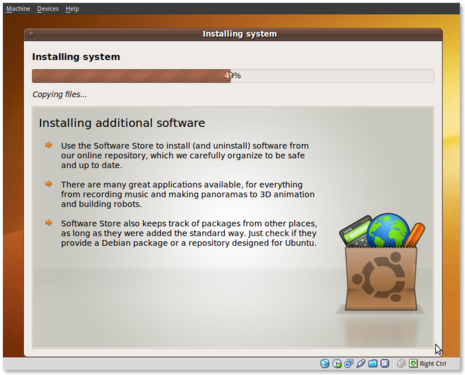
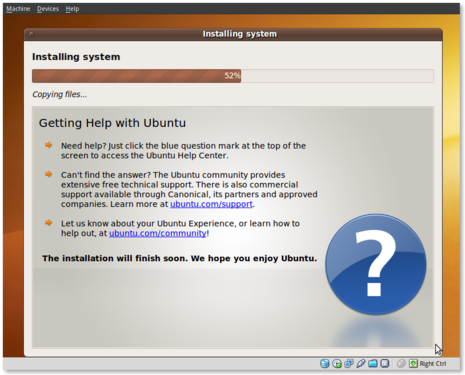
The installation was quick and painless. All of the questions were asked in the beginning and then the installer took over. During the installation messages were displayed regarding the benefits of Ubuntu and the software that it provided. Below are some screenshots of the installation process.
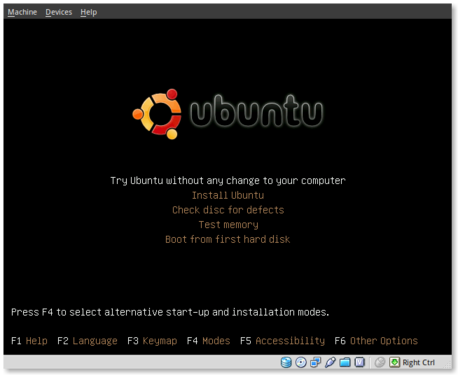
ubuntu-beta-install-1

This is the initial installation screen. As you can see it offers a number of options including disk and memory checks, as well as booting off existing installations. I selected “Install Ubuntu” and hit [ENTER].
ubuntu-beta-install-2

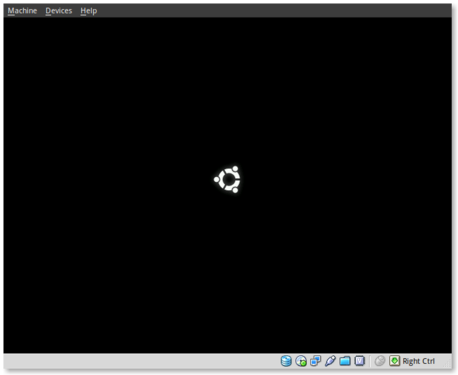
This appears to be the initial boot splash screen while the Live-CD installer is booting.
ubuntu-beta-install-3

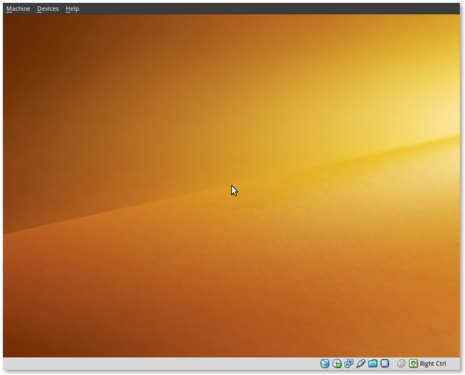
A preview of the new default wallpaper.
ubuntu-beta-install-4

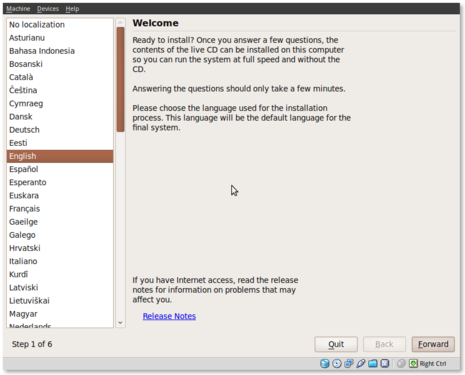
Welcome to the installer! Select your preferred language. This language will be used during and after the installation.
ubuntu-beta-install-5

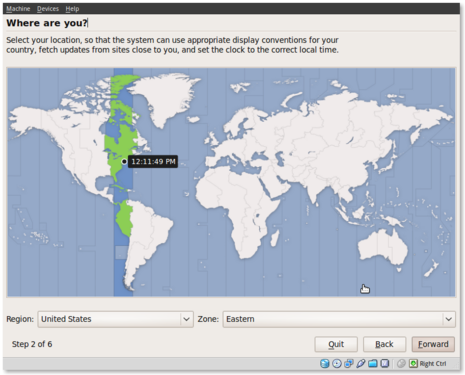
Select your timezone. I very much like this improved location selector tool. Instead of trying to find myself on a map that zooms in and out (you may remember what I’m referring to from previous releases), this simply slices up the world into timezones and allows you to select yours.
ubuntu-beta-install-6

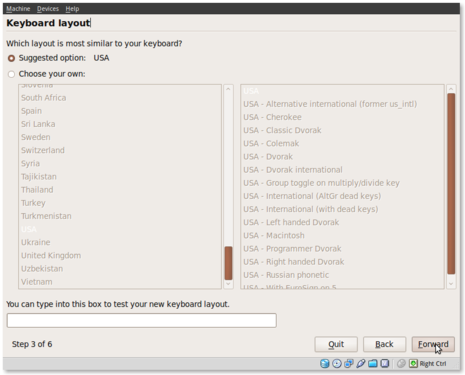
Select your keyboard layout. For US English standard qwerty layouts you can click forward. I needed to select “Choose your own:” and “USA – Dvorak” for my layout.
ubuntu-beta-install-7

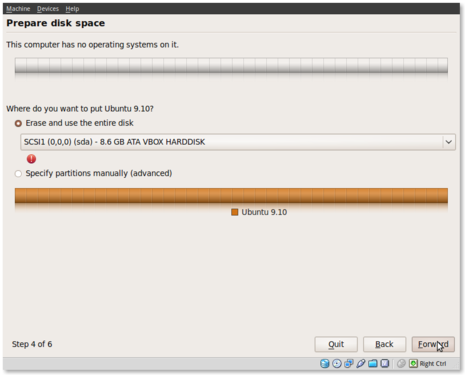
Partitioning was simple. I erased and used the entire disk.
ubuntu-beta-install-8

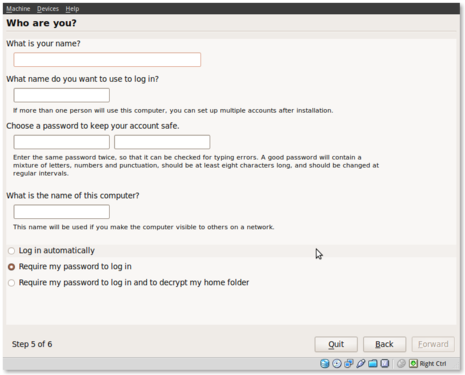
Username information. Enter your full name, username and password information. Remember that this user will also act as the initial administrator.

I also like the addition of the “Require my password to log in and to decrypt my home folder” as well as the other options. I selected the last option and am using the encrypted home folder system.
ubuntu-beta-install-9

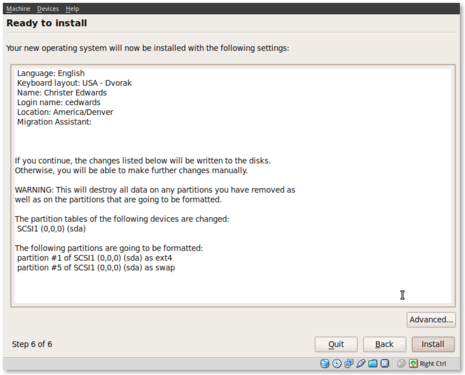
Final review point before installation. From here you can still go back and make changes. Once you click install it should be hands free from here out.
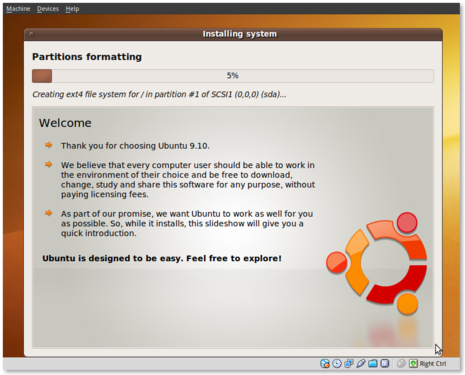
ubuntu-beta-install-10

Welcome to Ubuntu 9.10 – “Ubuntu is designed to be easy. Feel free to explore!”
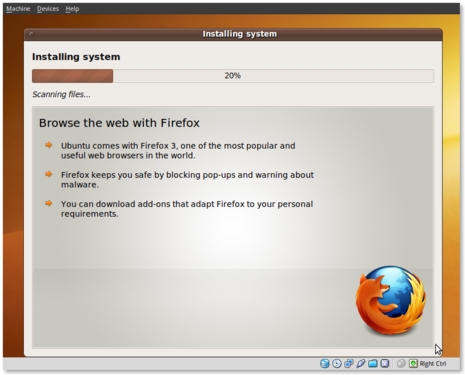
ubuntu-beta-install-11

Browse the web with Firefox

ubuntu-beta-install-12

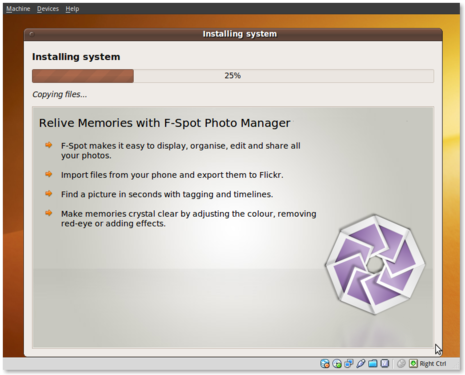
Relive Memories with F-Spot Photo Manager
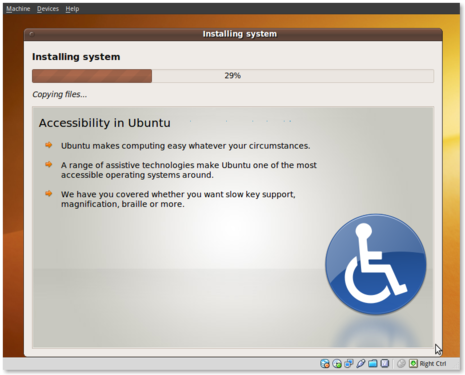
ubuntu-beta-install-13

Accessibility in Ubuntu

ubuntu-beta-install-14

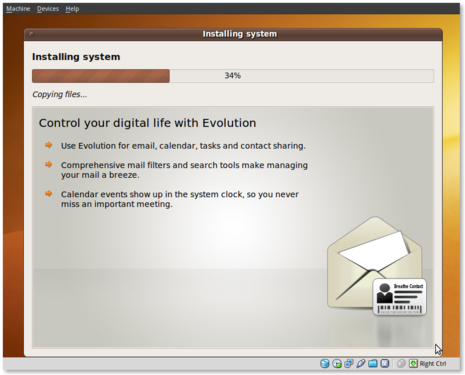
Control your digital life with Evolution
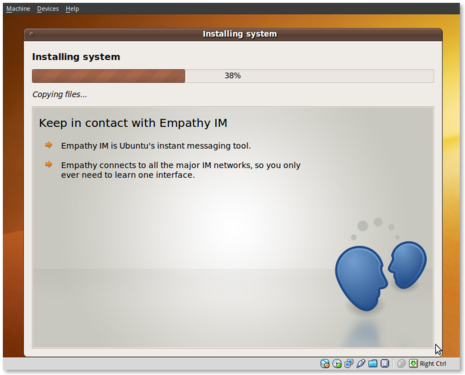
ubuntu-beta-install-15

Keep in contact with Empathy IM

ubuntu-beta-install-16

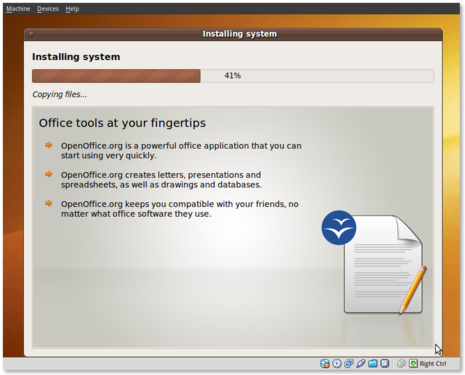
Office tools at your fingertips

ubuntu-beta-install-17

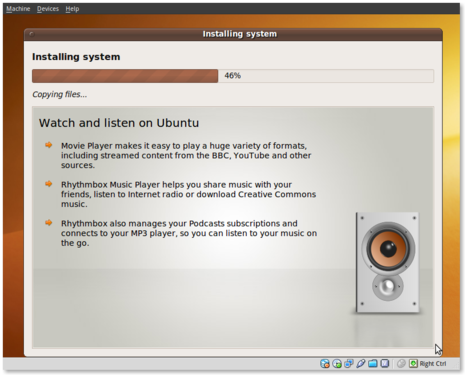
Watch and listen on Ubuntu

ubuntu-beta-install-18

Installing additional software

ubuntu-beta-install-19

Getting Help with Ubuntu

ubuntu-beta-install-21

Post Installation

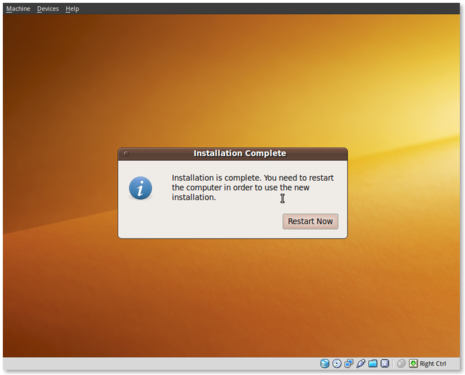
Installation complete. At this point you can restart the machine and your installation should be done.
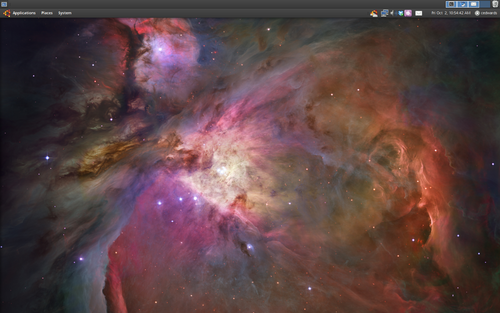
after-installation

This is a screenshot of my final installation. I have changed the following:

Conclusion

So far I think this release seems very polished. The graphics and artwork are very clean and professional. I had no trouble getting things installed properly, and I haven’t had any issues post-installation. The notification system appears to be a little more polished as compared to 9.04. We’ll see what my feelings are with continued use.

So far I am pleased with this release and would confidently suggest it to others, even if it is the Beta release.

Tuesday, October 6, 2009

LInux Sync Tool

If you have not heard about Dropbox let me tell you firsthand it’s by far the best file sync utility to keep your files synced up between your Linux, Mac, and Windows machines and also making them accessible through the web. After the initial upload all changes to the files are uploaded rather than the file itself all over again. You can roll back a file to any previous version and you can share your folders to a workgroup or your friends or even the public.

Head on over to http://www.getdropbox.com and see the preview and sign up for some free space. There are Ubuntu .deb files for easy installation (Even 9.04) and the development is active. It uses Amazon’s S3 cloud platform for the backend and it’s very efficient and robust

Monday, October 5, 2009

Sexy LInux ! Ubuntu Nokia Synchronisation

Make your Symbian phone talk to your Linux computer

Linux Nokia Symbian S60
Nokia is extremely Windows minded. That makes sense, because the market share of both Nokia and Symbian (largest shareholder: Nokia) makes Nokia a sort of Microsoft of the smartphone business, which leaves users of other operating systems out in the cold. Sure, Nokia made a few programs to provide a bit of totally inadequate Mac support, but they've never programmed a single line of code to make your Symbian S60 phone talk to Linux. Sony Ericsson? LG? Motorola? They're as guilty as Nokia.

To make things worse for Linux users, PC Suite doesn't work under WINE.

There are ways to close the communication gap a little. Wammu is like a kind of bare bones PC Suite for Linux. Unfortunately most of its features don't work with new Symbian phones.
Wammu (front-end to Gammu)

KMobileTools and gnokii are older attempts at mimicking PC Suite functions. KMobileTools uses the Gammu engine (you're better off with Wammu), gnokii only works with old versions of Symbian, not with S60 3rd ed. or UIQ.
KMobileTools
gnokii


Phone Manager may turn into a Linux PC Suite, but in its current state it can only send SMSs from your computer through your phone:
Phone Manager

Joomla! is a site with tricks to transfer files from your Nokia to your Linux computer and back, use your Nokia as a modem, and more. But prepare for lots of typing on the command line.
Joomla!

Smoking Linux has a tutorial that explains how to transfer files from your Linux computer to your phone memory. Lots of command line typing.
smihael

Windows users can synchronise their phone with Outlook. But who wants to use outlook anyway when you can sync your phone with Mozilla Thunderbird on your Linux box?
bluZync: synchronise your phone with Thunderbird over bluetooth
bluZync user forum (you may need this, because bluZync doesn't work just right out of the box and their FAQ is not ready yet)

Tuxmobil.org has a list of Linux programs for older Nokias.
TuxMobil

There's no Linux version of Nokia Map Loader, but there's a Nokia Map Loader Alternative that works on Linux (and on any other operating system too!):
Nokia Map Loader Alternative

http://seekingz.blogspot.com